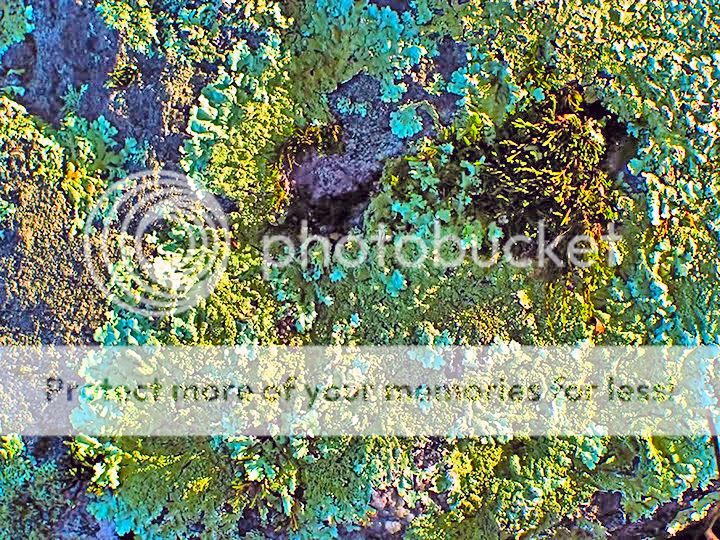
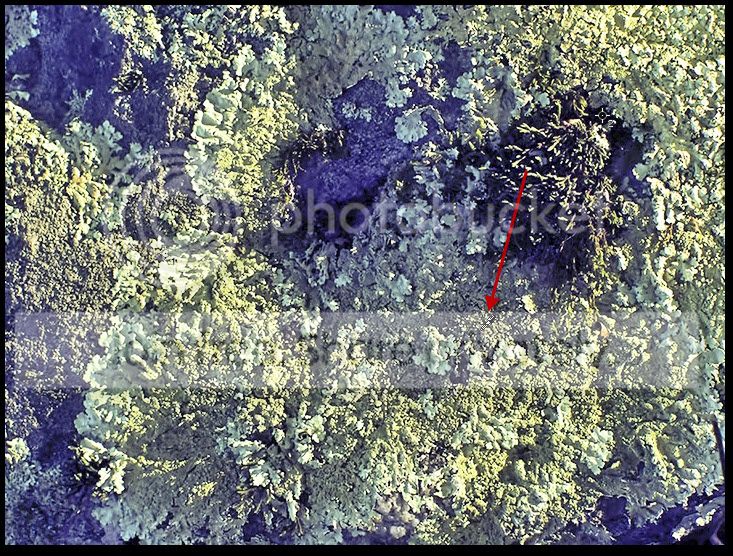
Hey, thanks, Kevin. Was your posting ALL done with just shadows/highlights? It's nice and so much closer to where I want to go with this.
No, there was more done. But not much more. Steps below:
1) Looked at the individual color channels. None stood out as being much better or worse than the others. So left them as is.
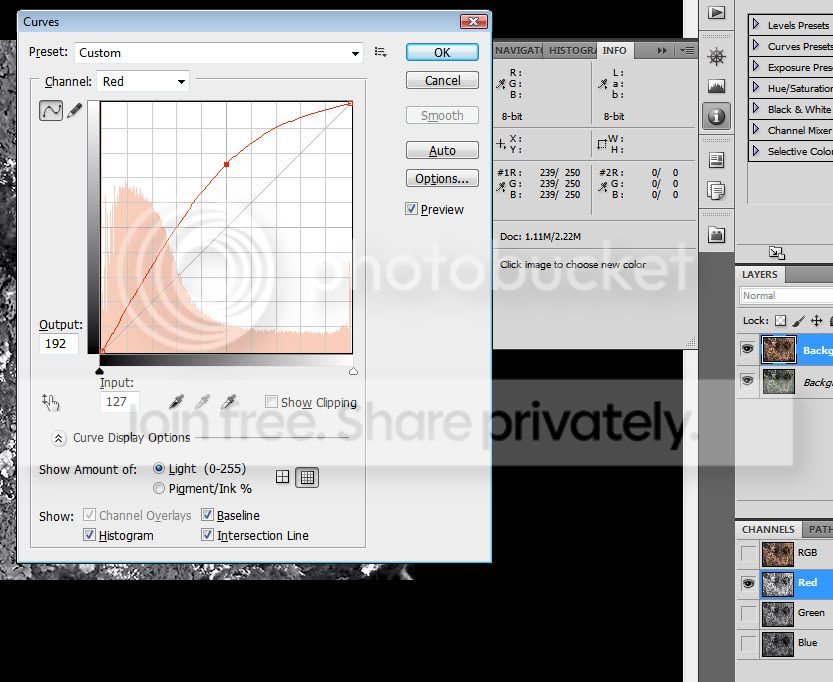
2) Duplicated layer. Found the bright and dark points using a threshold layer. Set eyedropper sample points there, and then discarded threshold layer. I then opened up the each of the three channels. See below for sample for red layer. Other layers similar. I wasn't too fussy about the actual shape. I generally tried to lift the center while watching the rgb values. I didn't want to blow the channel out.
3) Now take top layer and set it to luminosity blend mode. Steps 2 and 3 have the effect of dramatically lightening the image and bringing the lighter tones closer together while adding more contrast in the darker, denser regions.
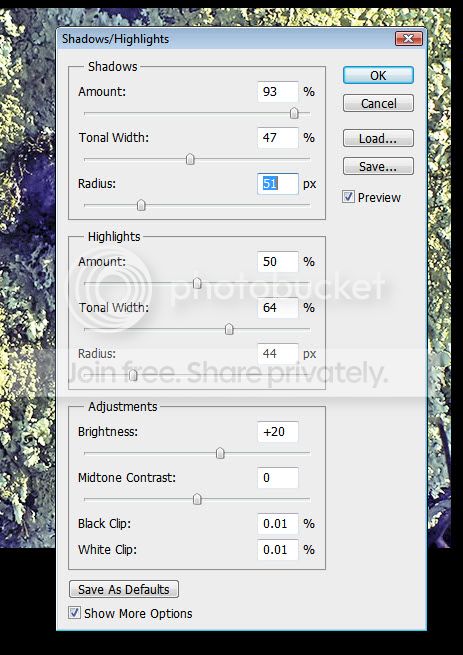
4) Flatten file and apply Shadow / Highlight. The values have changed since I did this yesterday. You have to play with the settings to see what looks good to you.
5) Image | Mode | Lab
6) Man-from-Mars
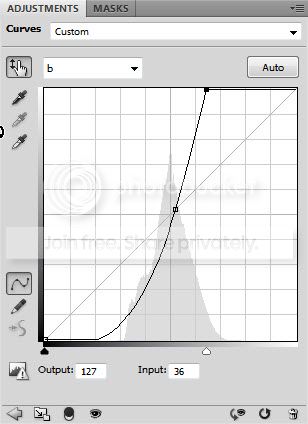
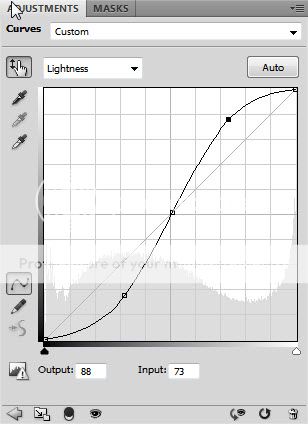
a) Select a mid point in the image. Not a physical midpoint, but a mid point on terms of tone. The go control shift click to set down an anchor point on all three channels.
b) Set the lightness curve to something similar. [As I tried to post this message, I got an error saying I had too many images. I will repost this in the next message.]
c) Adjust a and b to something similar. Essentially, look to see if the "dot" is in the top or bottom half. If it is in the top, then drag the end point to your left until the curve goes flat along the bottom. If it is in the bottom, then drag the end point to your right until the curve goes flat along the top.
d) The curves layer produces a wild image at this point. Much too colorful and much too contrasty. Reduce its opacity to something like 10-20%, typically. I think I might have used something like 30-40% last night. Use your own judgement.
7) Flatten file.
8) Duplicate layer. Using Apply Image command, apply A channel from bottom layer to top layer A channel in overlay mode. Do the same with B channel from bottom and top layers. Reduce opacity of top layer. The opacity range can vary considerably depending upon the image.
9) Flatten file and convert to sRGB. You're done.
With your larger and higher resolution file, you might wish to sharpen the file. There are different strategies for doing that.
While this 9 step process might seem extremely long and complicated, in reality it is fast and easy. Within 2-3 minutes, you're done. Five minutes if you wish to take your time.
I have mentioned Dan Margulis before. This is where I learned these techniques. My version here is fast and quick. You can be more elaborate if you wish.
Here's a link that provides more information on Margulis:
http://www.openphotographyforums.com/forums/showpost.php?p=101863&postcount=41